
|
|
|
|
| PowerPoint如何设置向左弯曲路径动?具体操作过程步骤如下,希望能帮助到大家! |
|
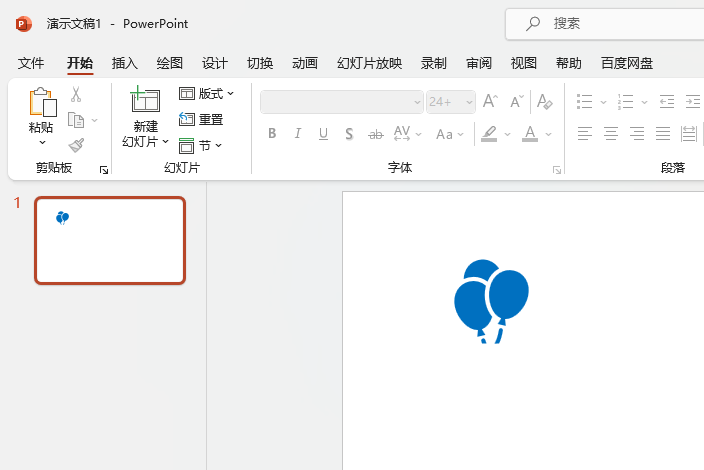
1、在【PowerPoint】文档中,插入一个【图标】出来。
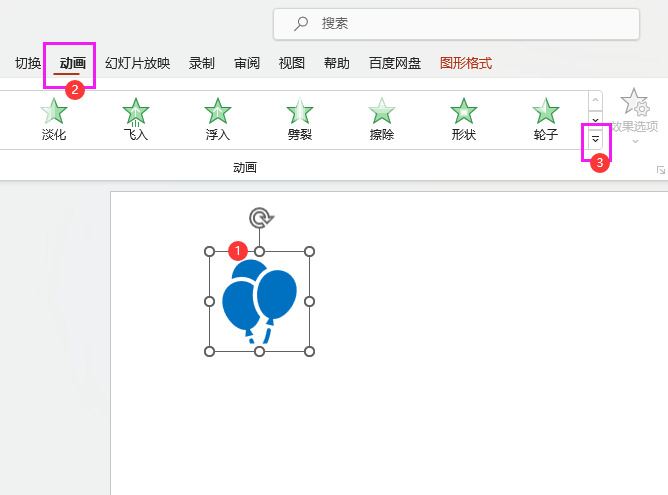
2、选择【图标】对象,点击【动画】菜单,点击【更多动画】。
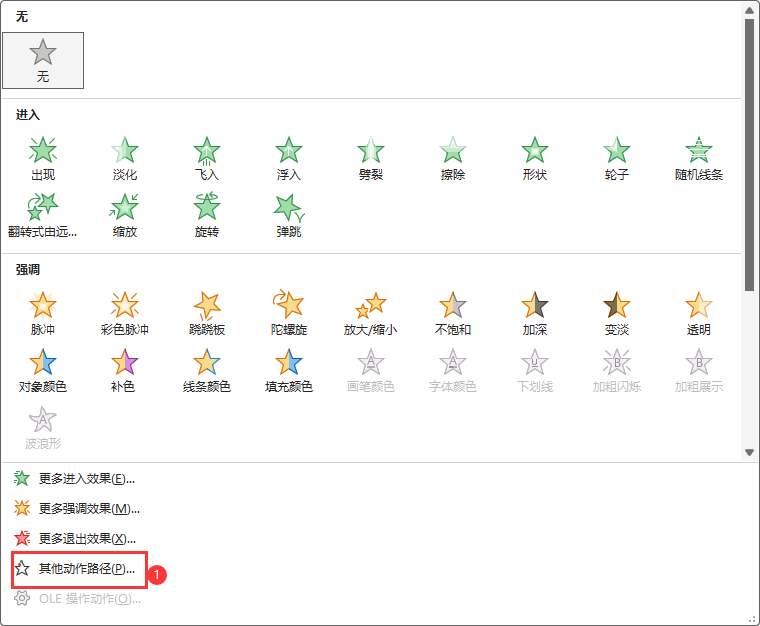
3、然后点击【其他动作路径】设置。
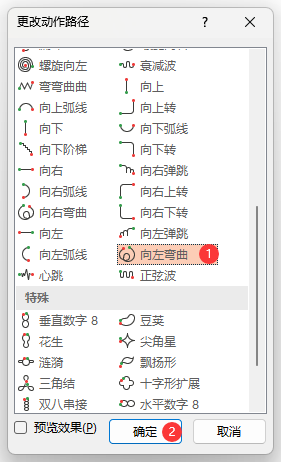
4、弹出【更改动作路径】面板,选择【向左弯曲】,点击【确定】。
5、这样图标就设置好了【向左弯曲】路径动画。
|
|
|
Copyright @ 2006-2024 rjzxw.com Inc All Rights Reserved. 软件自学网 版权所有
联系我们
赣ICP备17006577号-1  赣公网安备 36082102000008号